Linear — Create Issues from Findings
Connect your Linear workspace so BleedWatch findings become Linear issues in the team that handles security work. Issues carry the finding's severity, asset context, and a deep link back to the full record.
Linear access tokens are long-lived (BleedWatch stores them encrypted and refreshes them opportunistically). No refresh-token round-trip is required — unlike Jira or ServiceNow, Linear's OAuth app emits one long-lived token instead.
Before you start
- You have admin or member-with-OAuth-consent rights on the Linear workspace you want to connect.
- You have access to BleedWatch with the Admin role.
- You know the team ID of the Linear team that should receive findings — needed at routing-rule setup.
- (Optional) You know the IDs of any Linear labels you want auto-applied (e.g. a
securitylabel).
Estimated setup time: 3 minutes (plus a couple of minutes to copy your team/label IDs from Linear).
Step 1 — Grab your team ID (and label IDs, optional)
Linear team IDs are opaque UUIDs; the easiest way to grab them is via the Linear API.
In Linear, click your avatar → Settings → API → Personal API keys → Create key. Copy the key, then:
curl -s -X POST https://api.linear.app/graphql \
  -H "Authorization: <your-personal-api-key>" \
  -H "Content-Type: application/json" \
  -d '{"query":"{ teams { nodes { id name key } } }"}' | jq
You'll see something like:
{ "data": { "teams": { "nodes": [
  { "id": "ea2f8fcb-0000-0000-0000-000000000000", "name": "Security", "key": "SEC" }
]}}}
The id is what you'll paste into BleedWatch.
(For label IDs: same call with { labels { nodes { id name } } }.)
You can delete the personal API key afterward — BleedWatch uses OAuth, not this key.
Step 2 — Connect Linear
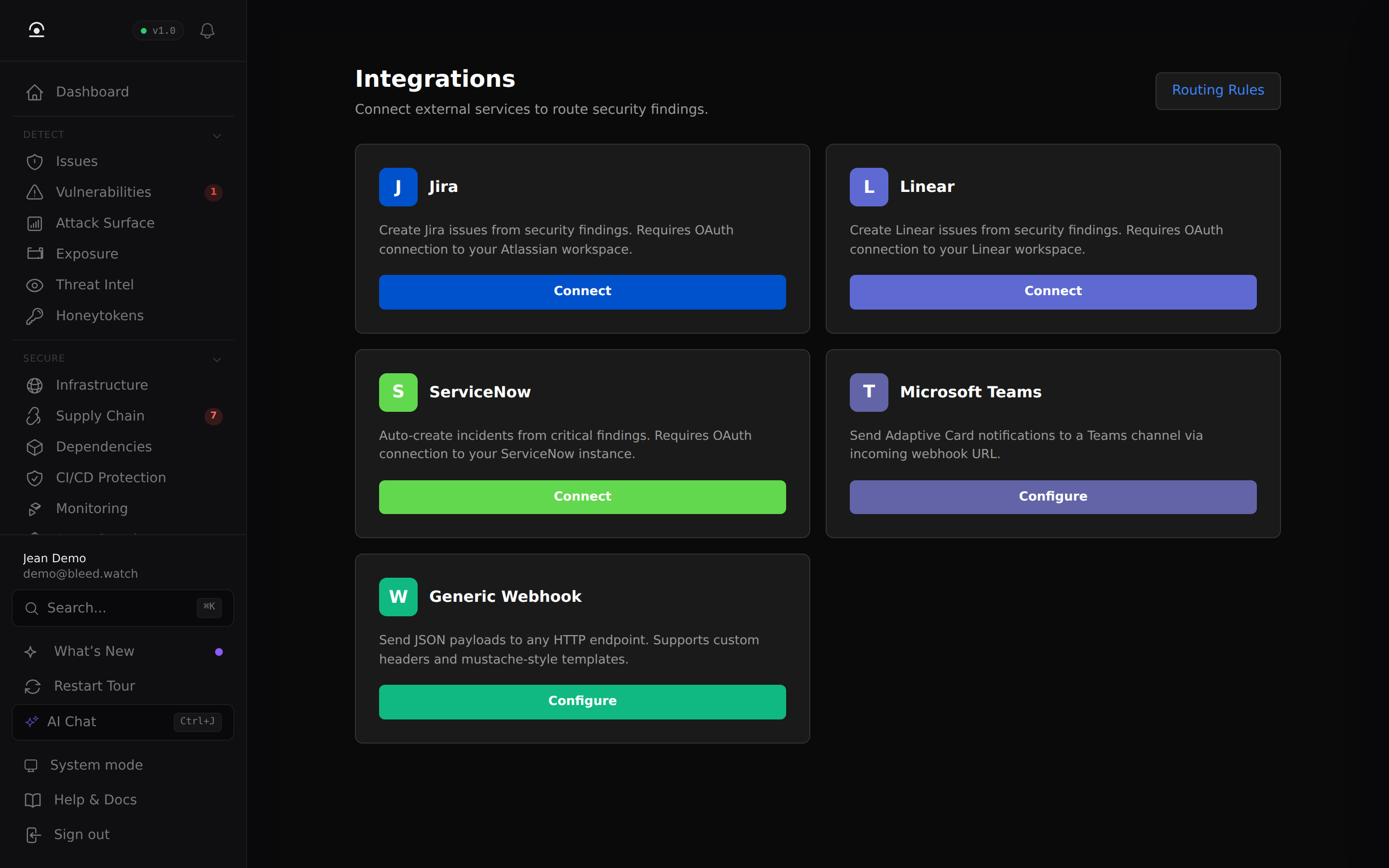
- In BleedWatch, go to Sentinel → Integrations.
- On the Linear card, click Connect.
- You are redirected to Linear's OAuth consent page. Sign in if needed.
- Review the requested scopes:
read— list teams and labels so you can address themwrite— required by Linear OAuth apps for any mutationissues:create— create issues (the only mutation we call)
- Click Authorize.
- You land back on BleedWatch with the Linear card flipped to ● Connected.
Linear's consent screen shows which workspace you're authorizing against — double-check it matches your target workspace if you belong to several.
Step 3 — Route findings to Linear
- Go to Sentinel → Routing Rules → + New rule.
- Set:
- Trigger: e.g.
Severity: high OR critical. - Channel:
linear. - Team ID: the UUID from Step 1.
- Label IDs (optional): UUIDs of labels to auto-apply.
- Trigger: e.g.
- Save.
Matching findings now fire a Linear issueCreate GraphQL mutation and appear in your team's triage queue.
How findings map to Linear issues
| Field | Value |
|---|---|
| Team | The teamId set on the routing rule |
| Title | [SEVERITY] FINDING-REF — <finding title> |
| Description | Markdown — severity, asset, status, full description, and a deep link back to the finding |
| Labels | The labelIds set on the routing rule (empty if none) |
| Priority | Not set by BleedWatch today — use Linear's automation to derive it from the [SEVERITY] prefix in the title if needed |
Linear's issueCreate mutation accepts a priority field (integer 1–4), but BleedWatch does not set it — Linear workspaces have too much variability in what priority 1 means in practice (P0? urgent? critical?). If you want auto-priority, create a Linear Workflow → Automation that reads the [CRITICAL] / [HIGH] prefix in the title and sets priority accordingly.
Troubleshooting
"Failed to start Linear OAuth flow"
Our LINEAR_CLIENT_ID isn't set. Open a support ticket — this is server-side config on our end.
After Authorize, nothing happens / you stay on the Linear page
Pop-up blocker or the callback is being blocked. Open DevTools → Network and look for a failed redirect to api.bleedwatch.com/api/v1/sentinel/integrations/linear/callback. Disable the blocker and retry.
"Invalid state parameter" on callback
The authorize took more than a few minutes (expired browser session). Start over at Sentinel → Integrations → Connect.
"Failed to exchange Linear auth code" (HTTP 502)
Transient Linear API issue or the auth code was already consumed (double-click on Authorize). Click Connect again — no data is stored until the exchange succeeds.
Routing rule matches, but no issue appears in Linear
- Confirm ● Connected on the Linear card.
- Confirm the team ID is correct — a wrong UUID returns a GraphQL error on our side but no visible alert on yours. Check Sentinel → Activity for
alert-failedentries. - Confirm the OAuth user still has access to that team. Removing them from the workspace will silently disable issue creation.
Issue title shows up fine but labels are missing
The label UUIDs on the routing rule don't belong to the team. Linear labels are scoped per team — re-fetch them with the team-scoped query:
curl -s -X POST https://api.linear.app/graphql \
  -H "Authorization: <key>" -H "Content-Type: application/json" \
  -d '{"query":"{ team(id:\"<team-id>\") { labels { nodes { id name } } } }"}'
Rotating access
Linear tokens are long-lived — BleedWatch stores them encrypted and does not need to rotate on a schedule. If you want to force rotation (after a security event, or offboarding the OAuth user), click Disconnect on the Linear card, then Connect again as a different user.
Disconnecting
Sentinel → Integrations → Linear → Disconnect deletes the stored token. Routing rules pointing at linear stop firing. Nothing is deleted on your Linear side — existing issues stay where they are.
To fully revoke BleedWatch's access on the Linear side, go to Workspace settings → Security → API → Authorized applications → revoke BleedWatch.